Sunday, November 2, 2014

DOWNLOAD TWD_MID Allwinner A13 Single Cam Android Tablet PC Firmware


                                      Allwinner A13 TWD_MID Single Cam

Board ID :TW-A708 V50 0903
CP 5650 1232 RXS
Tablets Recovery , Tablet PC Restore , Android Tablet Upgrade Instructions

I have flash this tablet personally and firmware restore was successful with below mention firmware
TWD_MID Allwinner A13 Single Cam
TWD_MID 7 Inch
TWD_MID Allwinner A13 Single Cam 01

TWD_MID Allwinner A13 Single Cam 02
Board ID :TW-A708 V50 0903

TWD_MID Allwinner A13 Single Cam 03
Allwinner A13 Chipset

TWD_MID Allwinner A13 Single Cam 04
Flashing Done . Tablet working perfect
Short Review TWD_MID Android Tablet PC :
Allwinner TWD_MID Tablet  is 7 inch  Tablets . No brand found on tablet so I can call it Blank  Id tablet but inside Chipset is Allwinner A13. Carrying Android 4.0.4 TWD_MID is basic tablet with frontal cam , 1.2 Ghz processor ,512mb Ram along with capacitive touch . I have flash this tablet personally and firmware restore was successful with below mention firmware
 Encyclopedia:-

Read Article About Allwinner Technology 

Tablet PC Specifications:
Brand : Unknown
Model: TWD_MID
LCD                
7 inch Capacitive multi touch  Screen
Screen Resolution 
800 x 600 Pix
Processor 
 1.6 Ghz  
Chipset / Boxchip
 Allwinner 13
RAM
512 MB
Built in Memory
4 GB
External Memory
Support Micro Card  (upto 16 GB)
Wifi
802.11 b/g/n  supported
Bluetooth
available
Sim
 N/A
Camera
  0.3 Megapixel front                                    
HDMI /3g Dongle
 Support 3G Dongle
Microphone
Built IN 
Weight
285 g
Android Version
4.0.4
4 Hours Battery Time

Flashing Tutorials for Allwinner Tablets:
Recommended Tools for Common Tablet Issues: 
You can also use : Android Multi Tools

Common Android Tablets issues :

The following firmware , ROM file will be used  when your Android tablet facing various problems . 
1. Forgotten Pattern Lock on Android Tablets
2.Too many pattern attempts / Reset user lock.
3. Tablets PC stuck on Gmail account.
4. Android Tablet PC stuck on Android logo.
5. Tablet Android  hang on start-up / Multiple errors generating by OS. 
6. Google play store having problems or generating errors. 
7.Upgrading to new Android version.
you can use this Android Tablet firmware,  ROM to restore your Android China tablets to generic firmwares or upgrades . Make sure to charge battery upto 60%. Power failure during flashing may result dead or broken tablets.
Note : Flashing generic tablet firmware should be last option.
Android Tablets flashing manual All in one Here


1. Requirements:
(1) Windows PC
(2) USB Cable
(3) Upgrade tool (LiveSuit.exe)
(4) Firmware image file
(5) Windows USB drivers

2.Upgrade Steps:
(1) Unzip the upgrade tool and USB drive to your hard driver
Double-click the LiveSuitPack10x_english.exe file, it will automatically install the driver files. Click "OK" to complete the driver installation.

(2) Open LiveSuit.exe
Double-click to open the upgrade tool LiveSuit.exe

(3) Select the firmware
Click the "SelectImg" button (the first button from the left) to select the firmware .img file.

(4) Turn off your tablet

(5) Press the key combination to start it in the upgrade mode
a. Press the "Vol -" key, then press the "Power" button, hold two buttons at the same time
b. Connect the USB cable to tablet and computer
c. After connecting the USB cable, press the power button 6 times quickly or hold the "Vol -" keys and the "Power" button for more than 6 seconds (you should get a pop up window if done correctly , if not repeat step 5 from beginning)
d. DON'T release the "Vol -" button till the LiveSuit window pops up
e. You can now release the "Vol -" button
(Note: If you install the driver at this time the pop-up dialog box, the path to point to installation directory UsbDriver LiveSuit folder, click Next to complete the driver installation prompts).
You should see LiveSuit window pops up; otherwise, you didn't do it correctly, you have to repeat step 4 and 5.

(6) Select the format to force upgrade
Livesuit prompt "force format", click "Yes" (Y). All of the original apps installed will be removed.We highly recommend mandatory format! ! ! Otherwise the update is not complete and may brick! ! !

(7) Upgrade begins
Pop-up "OK to force format" dialog box, select "Yes", the upgrade begins.

(8) The upgrade is complete
Firmware download process last about three and a half minutes or so, please wait until the prompt "upgrade successful."

(9) Automatic restart
After the upgrade is complete, your tablet will automatically restart, then you can unplug the USB cable.
Slow start-up for the first time, please be patient.
If the machine does not restart automatically, press and hold the Power button for 8-10 seconds or more to ensure the power switch off, then press the Power button 3 seconds or more to turn on your tablet.

(10) Congratulations! You have flashed the firmware.

Tablet imei repair tools Free Download Here


Advance Tablet imei repair tools V1.0
supported allwinner A20 cpu
supported allwinner a10 cpu
supported allwinner a13 cpu
supported Mtk 6572,65xx cpu
suppotred allwinner 2g modem imei writing
supported allwinner 3g modem imei writing
Different imei writing tools for different modem version


note : All tools need usb debugging on

For any tablet imei repair


How to use :

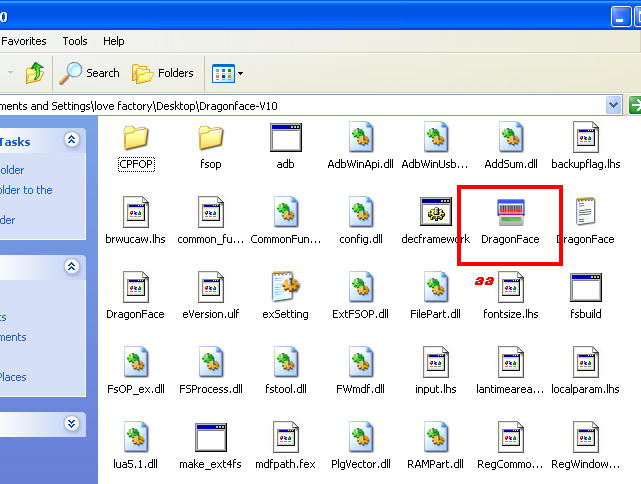
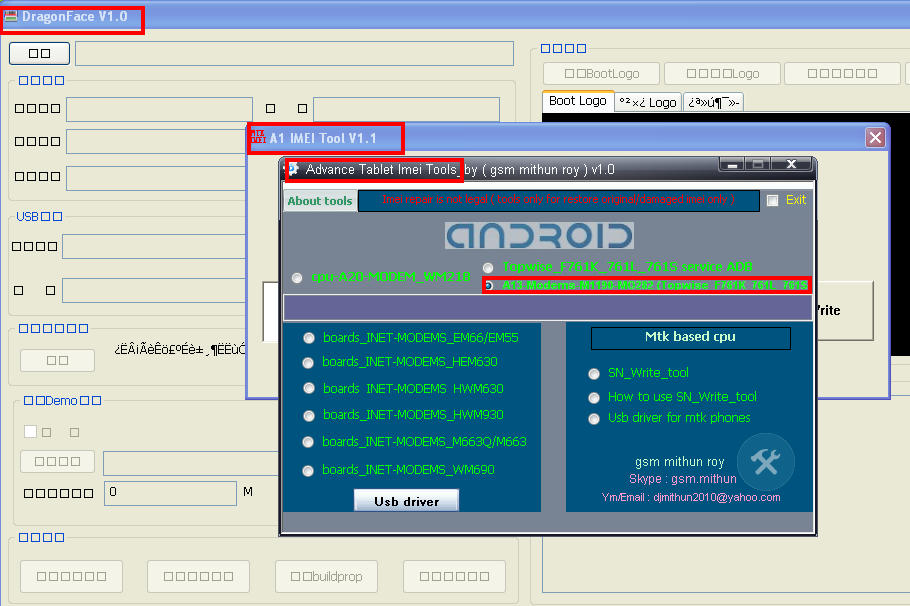
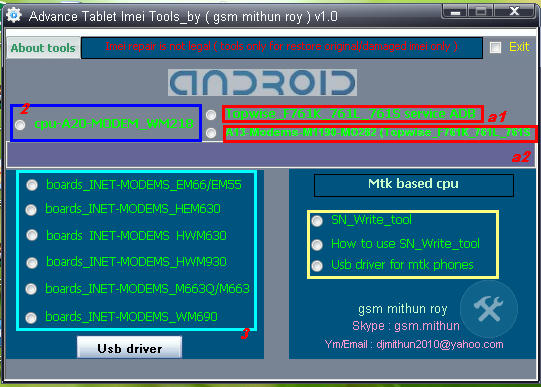
A1 & a2 : Click a1 topwise_F761k_761l_761s service Adb copy or extract Dragonface_v10 folder to desktop > open folder and deagonface.exe,now close advance tablet imei tools and open tool aagin now click a2 a13 modems1190-m0228 (topwise_F761k_761l_761s) then connect tablet and repair


2 : just click and fill the box imei digit press write
3 : click to any tools
according matches su al modem device enter 15 digit imei in cmd tool press enter then restart device and check

Flash and ROM update China Android Smartphone all installation method Here


As Chinese android smartphones have become more and more popular, and the users also increase largely,  but we may face a problem of update our android smartphone or get a ROM to flash our phone, and then release more storage. Now we will introduce the updated guides about how to flash your android smartphone?
Note:  Don’t do it without any firmware prepared and if you wanna have a try, please do it at your own risk.
There are actually 2 steps in flashing your phone into a newer firmware.
  • Card flash
  • Cable flash
1. Card Flash
CARD FLASH: it means using your SD Card to install the firmware, much easier and less risky, however, you need to have the recovery installed.WHAT YOU NEED:
Micro SD Card Storage:  preferably at least 4 GB
Battery: fully charge or not below 70%


STEP BY STEP PROCESS:
  • Your ROM (in zip format) send it to your SD card, Remember not to unzip, and make sure your SD card is not corrupted (blank is preferable).
  • Turn off your phone, insert SD Card.
  • Insert Battery, Enter RECOVERY MODE (Normally done by pressing Power Button and Volume – Key Simultaneously) Or you may use Volume Up (+) depending on your device. Hold for 8 secs until you go to Recovery Mode (Menu System with Dark background)
  • When you enter Recovery Mode, You will see options (see image below). Touch Navigation doesn’t work, instead Volume Up and Down key and Power Button for confirmation or enter.
  • First you need to wipe data and also data caches before flashing.
  • Then choose install zip from SD card and Confirm (power button)
  • After that your new ROM will be flashed to your phone, remember that if the ZIP is corrupted, security measures “installation will be aborted” or if your are trying to flash the wrong ROM.
  • Reboot your phone
NOTE: if you encountered an error where your SD card is not recognized or detected by the phone, please wipe the data or format your SD card (blank) send ROM back again to SD card and then insert on phone.
2. Cable Flash
CABLE FLASH: Is much more complex and riskier. When is it used? For example, a ROM update from Android 4.2  to Android  4.4 kitkat. Where you need to install a completely new system from scratch. In this area Card Flash is practically useless.
WHAT YOU NEED
USB Data cable
Battery, fully charge or not below 70%
Computer (windows 7, haven’t tested with Windows 8)
ZIP File (rename it in English)

STEP BY STEP PROCESS:
  1. Install msxm16 or 6575/6577 USB Driver (older) for dual core versions
  2. Install USB Driver, try to connect Phone and PC, see if it is detected (go to device manager), if not, reinstall and reboot pc.
  3. Extract Flash tool (newest one for MT6589) SP_Flash_Tool_v3.1304.0.119 or later
  4. NOTE: Flash tool is soooo buggy, sometimes it works, and other times doesn’t. If it doesn’t work, you need to install a newer one or sometimes a previous version works. Extract ROM on desktop (you may place all the files on the desktop to make it easier).
  5. Remove battery from phone, SD Card
  6. Open Flash tool.exe, click Scatter loading and look for “MT6577_scatter_emmc.txt” all files should be ticked.
  7. NEWER ROMS (“Samsung5410_Android_scatter_emmc”), doesn’t allow you to continue, please rename to “MT6589_scatter_emmc.txt” (if you have a MT6589 phone). it should look like this “MT6589_Android_scatter_emmc.txt”
  8. Click firmware Upgrade, Insert Battery (do not start phone) and connect your phone to pc via USB. and leave it be
  9. Wait until the green circle shows (please do not interrupt) firmware update is done and now you

Q&A…
Q: Flash tool error with (“Samsung5410_Android_scatter_emmc”) doesn’t start
A: Rename it please to “MT6589_Android_scatter_emmc.txt” (if your phone uses MT6589, if not, use MT6577)
Q: Can’t Start Up the flash tool
A: Close it, or you may need to restart your computer, and make sure the folder name is all in English
Q: Shows nothing after clicking fimware upgrade
A: Please reinstall driver, reboot, and free USB port with other peripherals.
Q: Flash tool recognizes but seems to have problems flashing,
A: Like i said, it’s very buggy, so you need to use another flash tool (preferable a newer one especially for MT6589 phones)
Q: Upgrade but stuck at 50 or 76% or any percentage.
A: Click stop, you may reflash again, don’t worry this doesn’t brick your phone, Make sure the battery has more than enough juice in it.
Q: Startup Stuck or nonresponsive after rebooting.
A: Wait at least 3 minutes, Reinsert battery and start again, if not, Reflash (ive experience this before, and reflashing did the trick)
Q: What is the scatter file?
A: Check image below
Q: ROM?
A: Image Below

Karbonn a21 dead Solution Here Tested


press vol down + power
if mobile same as pic
insert usb
install driver
see in device manager
qualcom 9006 port
use emmc write tool with bp firmware
after write imei your mobile on
if not on press volup power,this time your mobile enter in fast boot mode( green )
then mobile flash with ap firmware


..........................
if mobile totally dead & device manager qualcomm 9008 com appear
then use qpst tool
and rename this two filename in qpst tool according to your phone bp firmware
bp firmware folder inside .hex and .mbn file name
open bp firmware folder
select .hex file rename option and copy name and paste in qpst phone program flasher name same as pic
mbn file name copy and past in qpst tool
boot image mbn file


load xml & patch file in a21 bp firmware same as pic


select bp firmware in path 2


press download

after this prosess
your mobile not on
your mobile enter in qpst download mode or fast boot mode and see in device manager
qualcom 9006 port appear(auto convert 9008 to 9006)

if enter qpst download mode
agan flash bp firmware with emmc download tool
then write ap in fast boot mode


Tools Needed:


  1. Dead Phone (When u connect to PC it should install Qualcomm HS-USB QD Loader 9008 Driver) Download Link
  2. QPST.2.7.399 Download link
  3. Flare Revival kit Download Link
  4. PC with 32 bit Windows (XP/Vista/7/8) (64bit casus problem in QPST
  5. installation)

Here is full tutorial Download link

Volcano Box When Positive & Negative Line Missing Solution Here

::How To Recover Volcano Box When Positive & Negative Line Missing::.


 Here I Face one Box Which Positive & Negative Line are Null
Box Con't Detect [D+/ D-] Mode
Box work Only [Rx/Tx] Mode
Many User Face this Problem


If User Face this Kind Of Problem
Do First System Recovery Also Update All Driver
If Still Same ..Do As Bellow Like this Pic


After Doing Modify PCB Now See the Detect Shot
All is Ok Now Do Any Think as You Want


Copyright @ 2013 FLASH FILE & SOFTWEAR ZONE.